


VoIP QoS Settings-Linksys
VoIP QoS on Linksys Routers
QoS settings are available on a few models of Linksys routers and can, if configured correctly, make for better call quality. There are several ways to set QoS, each type of which acts differently. The main goal should be to eliminate choppy voice that is caused by high bandwidth applications from "stepping on" the voice traffic. Setting QoS in small routers should be a "keep it simple" exercise, with a process of testing after saving the configurations to make sure the desired results are being achieved. On simple Linksys routers with standard firmware you should typically see three types of QoS settings: Device Priority, Ethernet Port Priority, and Application Priority. The information below is for typical Cisco/Linksys routers. For a open source firmware that can be flashed on some older Linksys routers see our settings for Tomato QoS.
Information on 3 QoS settings:
Device Priority QoS
Device priority is accomplished using the MAC address (Media Access Control address) of the particular hardware component, such as a computer (you would use the NIC card's MAC address) or an ATA. This unique identifier is associated with the individual device and gets tagged with either High, Medium or Low. In the case of improving voice you would want to set the ATA(s) as High and other less critical devices to Low. Once the devices MAC addresses are set and saved the High device would be given priority going out through the router and any of the computer's applications data traffic would be a lower status preventing choppy outbound voice. The typical default priority for unlisted devices is "Low", so setting one ATA to high would prioritize that device above others.
Ethernet Port QoS
Ethernet Port priority uses the actual physical Ethernet port of the router and once picked will apply QoS to whatever device happens to be plugged into that port (on a four port router these would be the LAN ports 1 through 4). This QoS tag is easy to set with the understanding that if cables get unplugged things could get mixed up. It would be a good practice to label the Ethernet cable, as well as the Ethernet port, so that a mix up in the future would be less likely to occur.
TCP/IP Port QoS
TCP/IP Port priority allows you to choose the port number or port ranges* and set a level of QoS which would be applied to all traffic using those ports. (*Unfortunately, many small home/small office routers lack sufficient settings for port QoS. Some do not allow for a range of ports or to pick UDP or TCP. This becomes a problem for setting an RTP range for voice traffic.) TCP/IP Port QoS can provide for application specific, rather than device QoS. For instance, you might decide that surfing should be given more priority than some other applications, so a High setting for port 80 would improve web surfing when a high volume of data traffic is passing through the router. (Some routers have three settings Low, Medium, High, while others only have two.) If you have a router that allows a range, for voice you would need to know which ports are being used by your service provider. RTP, which carries voice most likely would be a range, like 10,000 to 20,000 UDP. SIP signaling typically uses ports 5060 and 5061, but your provider could use other additional signaling ports as well, (i.e. 5062..., and/or 5080, etc.)
Accessing the QoS Settings on Linksys Routers
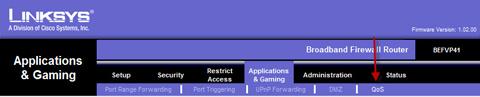
First access the QoS settings for the router. (These instructions should work OK for many different models as the screenshots should be very close.) To access QoS go to Application and Gaming.
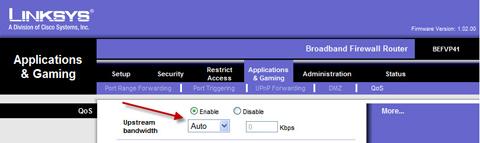
When on the QoS settings page you will see the various types of configuration settings that the router is capable of. The first item is to actually enable QoS and there are two options for the upstream bandwidth allocation, Auto and a hard setting.
Correct flow control depends on the router being able to calculate how much data can be queued at any time. If the router's algorithms are based on a higher upload bandwidth than what actually exists, QoS will not work and packets could even end up dropping making voice quality worse. Unfortunately, many small home/office routers do not do a good job of calculating the maximum upload bandwidth capacity, so a preferred setting would be to hard set the upload capacity. Do several bandwidth tests and use 90% of the average upload results as a setting. While being true that you will throttle your maximum upload throughput by 10%, using this formula will better ensure that QoS will actually work correctly.
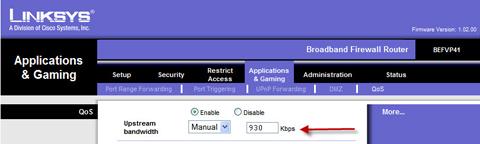
After enabling QoS and making any new settings remember to save settings before exiting, so the new changes will be saved to the configuration file.


Using the Auto setting might result in improper QoS on outbound voice. If this happens hard set the upload to 90% of your upload bandwidth. If your bandwidth changes from day to day you may want to use 90% of one of the lower measurements.
Once you have Enabled QoS and set the Upstream Bandwidth you are now ready to set priority for your VoIP ATA.