


Motorola VT2442 to PPPoE
Configuring a Motorola VT2442
Voice Gateway to use PPPoE.
The first step in configuring the Motorola VT2442 would be to connect the Ethernet cable directly from the computer to one of the numbered Ethernet ports. Then power up the Voice Gateway and then power up the computer. You can follow the step by step procedure for setting pppoe on your vt2442 by using the following screenshots. After the computer has opened to it�s desktop, double click on Internet Explorer and let it completely open. It may display �Page cannot be Displayed�, but that is all right. Type the following address into the address bar of Internet Explorer http://192.168.15.1 and click on go or hit Enter.
A box requesting a user name and password prompt will
appear.
In the user name field type "router"
and then type the password
"router",
which is the default.
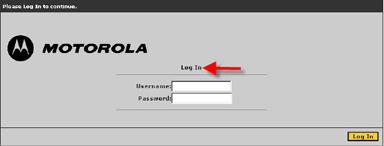
Click Log in and the Home page should display.
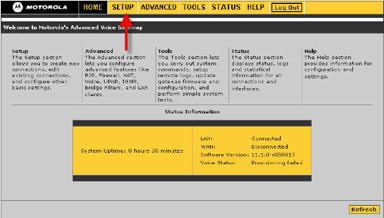
Next click on Setup from the top menu followed by WAN Configuration on the next screens side menu. Select the PPPoE option from the Type drop down list.
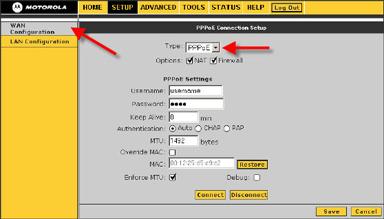
Once PPPoE is selected, enter your PPPoE DSL username and
password provided by your Internet Service Provider into the
router�s User Name and Password fields. Backspace over the password field making sure you start from
the very beginning of the field and use the correct case. Your
username format can vary form, so you will need to know exactly how
the complete username should be entered. If you are in doubt,
your ISP should be able to verify the correct name, format and
password.
Options such as NAT Network Address Translation and Firewall can be
enabled or disabled here.
In the Keep Alive field type 0 to ensure that your DSL
connection remains always active. (The �Keep Alive� option will ensure that your connection
stays connected even when it is not in use.)
Click on Connect to start the connection process. Click
on Save.
Un-power all devices and your PC.
Connect an Ethernet cable from the DSL modem to the Internet
port of the Motorola VT2442.
Keep the Ethernet cable from the computer connected directly
to the Motorola. Power on the DSL modem, waiting until it has had an
opportunity to resync with the DSL provider. Observe the
indicator lights located on the modem and wait for the lights to
stop blinking. A light indicating Power as well as DSL (or
Internet, Online, Ready, etc.) should become solid to indicate that
a connection to your Internet Service Provider has been
established. Next you should power up the Motorola waiting
about 15 seconds before turning on your computer.
Description of Lights on Motorola VT2400 series Voice Gateway
Motorola Voice Gateway Rear Panel Description of Ports